Marcora Marketing Agent for Google Chat
Get answers about your positioning, messaging, and competitors, plus on-brand drafts, research, and share pages, without leaving Google Chat.
Try it free with 100 Studio Credits; paid plans include a monthly allowance.
Answers and drafts use Studio Credits.
- Works indirect messages and spaces
- Who adds ita Google Workspace admin for everyone, or you, if your admin allows it
- Who can use itanyone on your Marcora team
Connection guide
How It Works in Google Chat
Each person connects their own Marcora account, once.
Anyone in the workspace who's on your Marcora team can use it. To bring a teammate in, invite them to your Marcora team.
- 1
Install it
Install Marcora from the Google Workspace Marketplace. A Google Workspace admin can install it for everyone, or let people install it themselves.
- 2
Message it
Message Marcora directly, or add it to a space and @mention it.
- 3
Connect your account
The first time, Marcora replies with a link to connect your Marcora account.
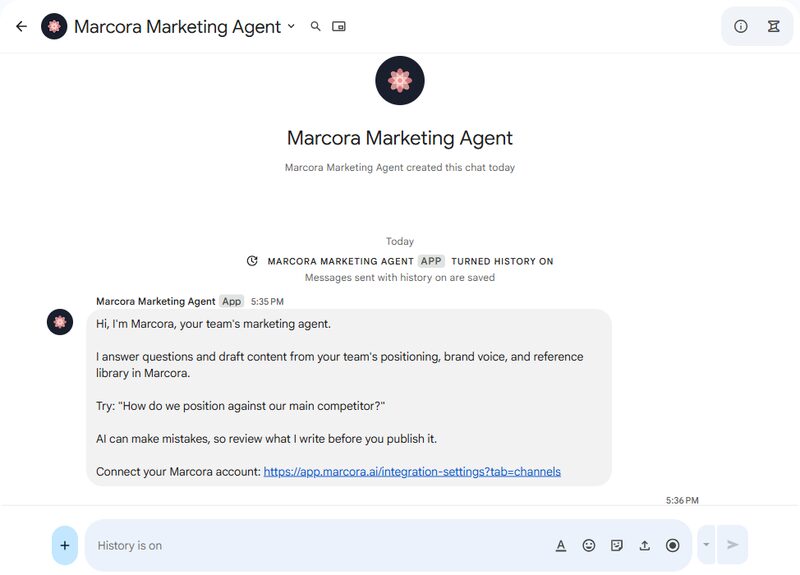
- 4
Ask away
Ask a question or hand it a task.
What you can do
What You Can Do in Google Chat
Ask a question or hand it a task. Here's the work it takes on.
Approved answers
Ask about positioning, messaging, products, personas, or competitors, and get your team's approved answer, ready to use.
Drafts in your brand voice
Emails, social posts, one-pagers, battlecards, and release notes, written right in the chat. Ask, and Marcora saves the draft as a document in Marcora.
Research on the web
Look up a company, competitor, or market, then turn what Marcora finds into a draft.
Share pages and connected tools
Publish finished work as a share page anyone can open from a link, or send it to tools you've connected.
Knowledge that flows back
Turn a decision, call insight, or customer quote from the conversation into reference context for the whole team.
Answers from your connected tools
Connect the tools you already use, like HubSpot, Gong, and Google Drive, and Marcora pulls what it needs from them while it works in the thread. See integrations
Try asking
Start With the Questions You Already Get

Want me to turn this into a battlecard?
Platform notes
Good to Know in Google Chat
Message Marcora directly, or add it to a space and @mention it.
Needs a Google Workspace account.
Your Google Workspace admin may need to allow it.
Connected tools
Marcora can use the apps you've connected in Marcora, like HubSpot or Gong, from your next conversation. See integrations
Privacy and security
It Only Hears What's Meant for It
Only messages meant for it
Marcora receives only your direct messages to it and messages in spaces that @mention it.
Not used for training
Our AI model providers don't use what you send or create to train their models.
Questions, problems, or an AI response that's inaccurate or inappropriate? Visit Support or email support@marcora.ai.
Google Chat and Google Workspace are trademarks of Google LLC.
Bring Marcora Into Google Chat
Try it free with 100 Studio Credits; paid plans include a monthly allowance.
No credit card required.
