 +
+
Marcora + Claude
Bring your company's brand context into Claude. Pull your Brand Foundation, apply proven blueprints, and create on-brand content, without leaving the conversation.
Connect Marcora to Claude
Two ways in, and they land in the same place. Marcora is listed in Claude's connector directory, so the quickest route is one click, no URL to paste. You can also add it by URL if you'd rather.
From Claude's connector directory (fastest)
Marcora is listed in Claude's connector directory, so you can add it without pasting a URL.
Open claude.ai/directory/marcora. There is no URL and no token to paste. Marcora will not turn up if you search Claude's own connector list first — that list shows built-in connectors plus ones you have already added, so start from the directory link.
Claude shows you what Marcora can reach before anything is granted. Approve it to finish the OAuth flow. Claude will also note that Marcora is a community connector, meaning it passed Anthropic's automated checks rather than Anthropic's in-depth review. That label reflects how the listing was assessed, and does not limit what Marcora can do once you connect it.
Marcora is already switched on in every new conversation, so there is nothing to enable in the composer. Open a chat and ask "What's my brand foundation?"
The first time Claude reaches for each Marcora tool it stops and asks — "Claude wants to use Get Brand Foundation from Marcora: Brand Context & Writing" — with Always allow and Deny. Click Always allow. Until you do, nothing reaches Marcora: Claude will have found the tools but never called one. The prompt is per tool rather than per connector, so expect it again the first time each new Marcora tool comes up; approvals then persist across all your conversations.
Or add it by URL
The directory is a catalogue, not a different kind of connector. Adding Marcora by URL gives you exactly the same tools. Use this route if you are adding Marcora for a whole Team or Enterprise workspace, or if you would simply rather paste the URL.
In Claude, go to Customize > Connectors, click Add, and choose Add custom connector.
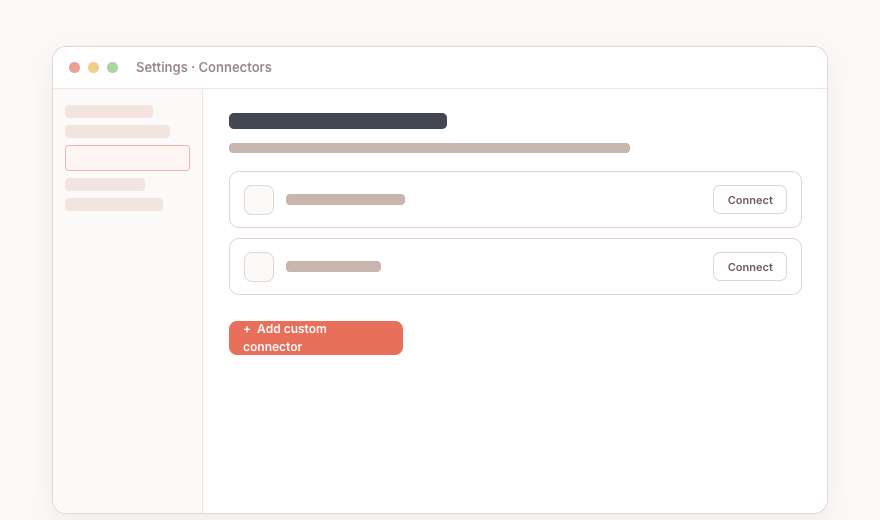 Claude · Customize > Connectors
Give the connector a name and paste the Marcora connection URL. OAuth client details are optional, under Advanced settings.
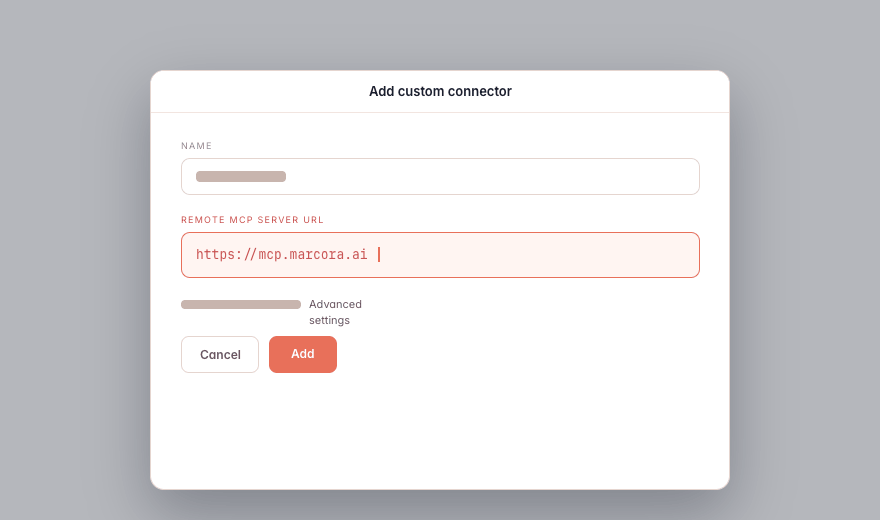 Add connector · name + URL
Click Add, then click Connect next to "Marcora" and approve access to finish the OAuth flow.
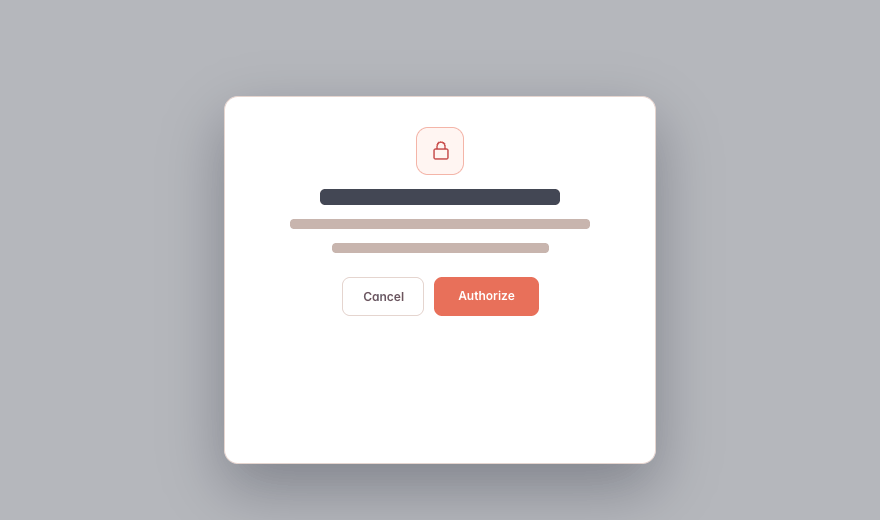 Connect · OAuth approval
What You Can Do in Claude
Plain-language asks in Claude. Marcora tools do the work and hand back a link.
“Use Marcora to pull our brand foundation, then draft a launch announcement for the Q2 release.”
“Search our Reference Library for enterprise objections and turn the top three into talking points.”
“Create a battle card from the Competitor X blueprint and save it to Marcora.”
“Share this draft with our agency as a link that expires next Friday.”
Teach Claude How Marcora Thinks
Two Anthropic Skills ship alongside the server and give Claude Marcora’s mental model, so it knows when to pull context, which blueprint fits, and how to build a workflow.
Claude-Specific Notes
Available on Free, Pro, Max, Team, and Enterprise plans. Free is limited to one custom connector. Connecting from the directory does not add a custom connector, so it leaves that slot free. On Team and Enterprise, an Owner may need to add the connector for the workspace first, under Organization settings > Connectors. On a Team plan, if you do not have permission to enable connectors, the directory shows Request instead of Connect, which sends it to your workspace admins to approve.
Works across Claude Desktop, web, and Claude Code with one connection.
Because Marcora is in Claude's connector directory, Claude can also suggest it in a chat when it is relevant to what you are working on.
The companion Skills are optional but recommended. They make Claude noticeably better at knowing when to reach for Marcora.


Give Claude Your Business Context
Connect once and the AI you already use can pull your context, create on-brand, and save it back.
