Agent Files
The Files tab on Agent Threads keeps every file Marcora has created for you, across all your threads, along with files you've attached to a message. Use it to find a file by name or type, go back to the thread it came from, or download it again. You can also save a file as a brand file, so Marcora starts from it in every new thread.
Before You Start
- Select View threads → under Start here, then select the Files tab. On a phone, open the menu first.
- Agent Threads is for Admins and Creators. Collaborators can't open it.
- The tab lists only your own files in your current team. Your teammates don't see them here.
Find a File
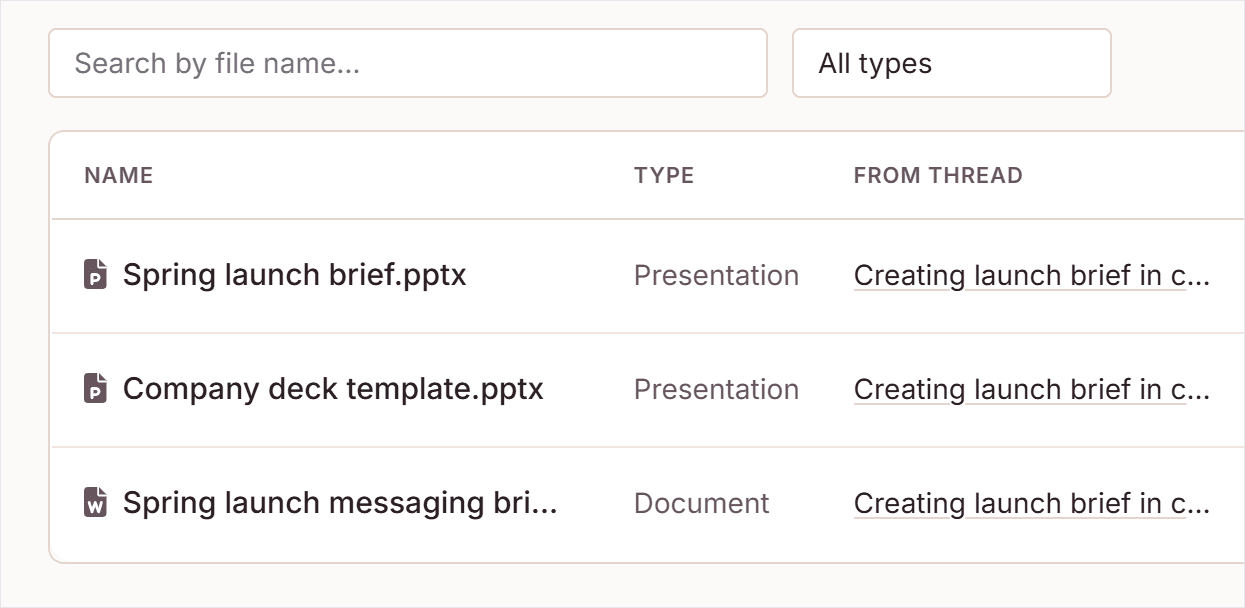
- Type in the search box to find a file by name.
- Choose a type from the list: All types, Documents, Spreadsheets, Presentations, PDFs, Images or Other.
- The newest files are at the top. Select Show more files to see older ones.
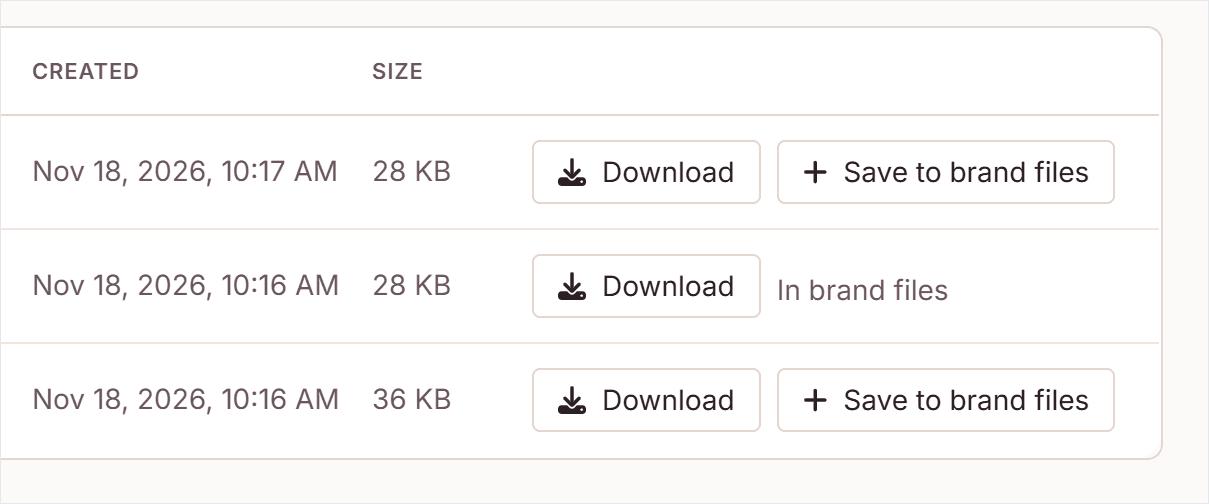
Each file shows its Name, Type, the thread it came from (From thread), when it was Created and its Size.
Open or Download a File
- Select the thread name under From thread to open the thread the file came from. A file you uploaded but never sent in a message shows Uploaded instead.
- Select Download to save the file.
Save a File to Brand Files
Brand files are files your team starts from, such as a company PowerPoint or letterhead. Marcora gets them in every new thread.
- Select Save to brand files on the file's row.
- Check the Name, and optionally fill in Use this for.
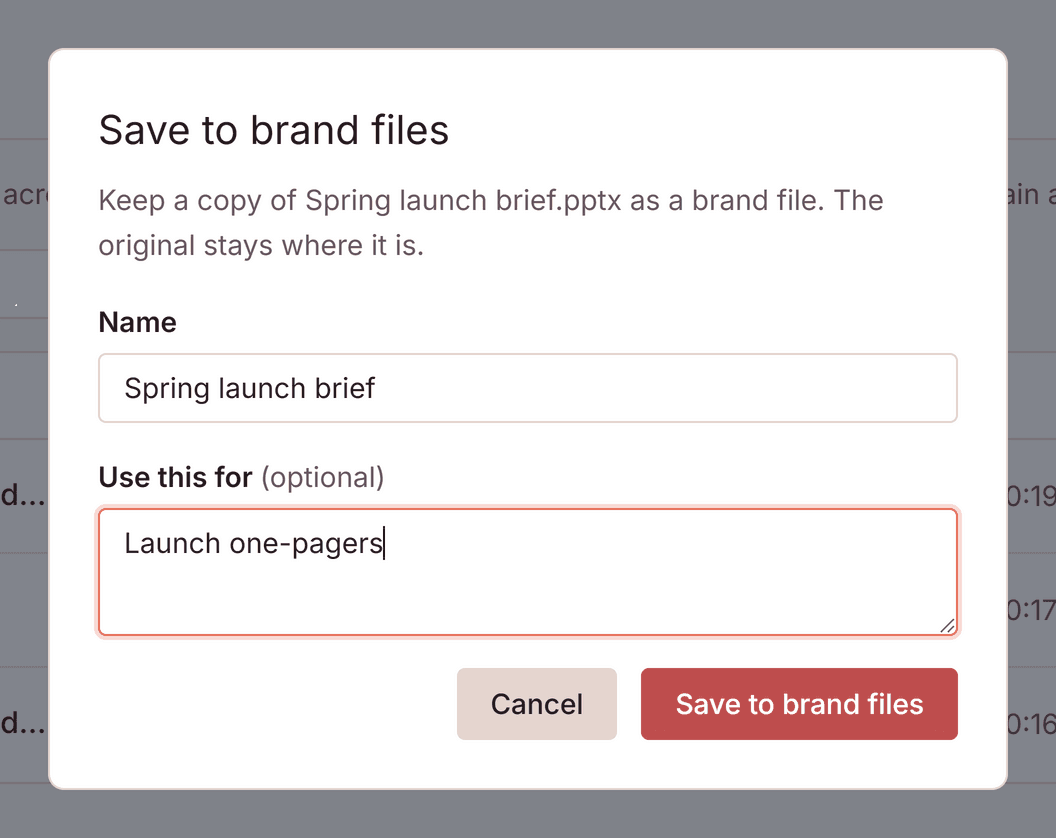
- Select Save to brand files.
The row then shows In brand files. The brand file is a copy: the original stays where it is. Manage brand files in Context Hub > Brand. See Context Hub.
How It Works
- Files are kept with no expiry date.
- A file's type comes from its file name, such as .docx or .pptx.
- A brand file can be a PDF, Word, PowerPoint, Excel, text or image file of up to 25 MB. Your team can keep up to 20 brand files.
Troubleshooting
"We couldn't load your files." Select Try again.
A file shows No longer available. Marcora can't find the file any more, so it can't be downloaded.
"Download failed. Try again." Select Download again.
Saving a brand file fails. The message says why: the file type can't be a brand file, the file is over 25 MB, or your team already has 20 brand files. To make room, delete one in Context Hub > Brand. If the file is already a brand file, the message says so.
Related
- Marcora Agent: start tasks and attach files in a message
- Context Hub: manage your team's brand files and templates