Marcora Agent
Marcora is the agent built into the app. Ask her a question or hand her a task, and she works from your Brand Foundation, Reference Library and Connected Apps to research, write and organize the work. Every conversation is saved as an Agent Thread you can return to.
Before You Start
- Open Marcora with Start here at the top of the sidebar, or press Ctrl K (⌘K on a Mac).
- Past conversations are on the Agent Threads page. Open it with View threads → under Start here.
- Files Marcora makes for you, and files you attach, are listed on the Files tab of Agent Threads. See Agent Files.
- Memory controls are in the account menu (your initials, top right) under Memory Settings.
- Admins and Creators can use everything on this page. Collaborators can use Start here and Memory Settings, but can't open Agent Threads.
- Each task uses Studio Credits. See Pricing.
Start a Task
- Select Start here.
- Type your request in the box.
- Select Go.
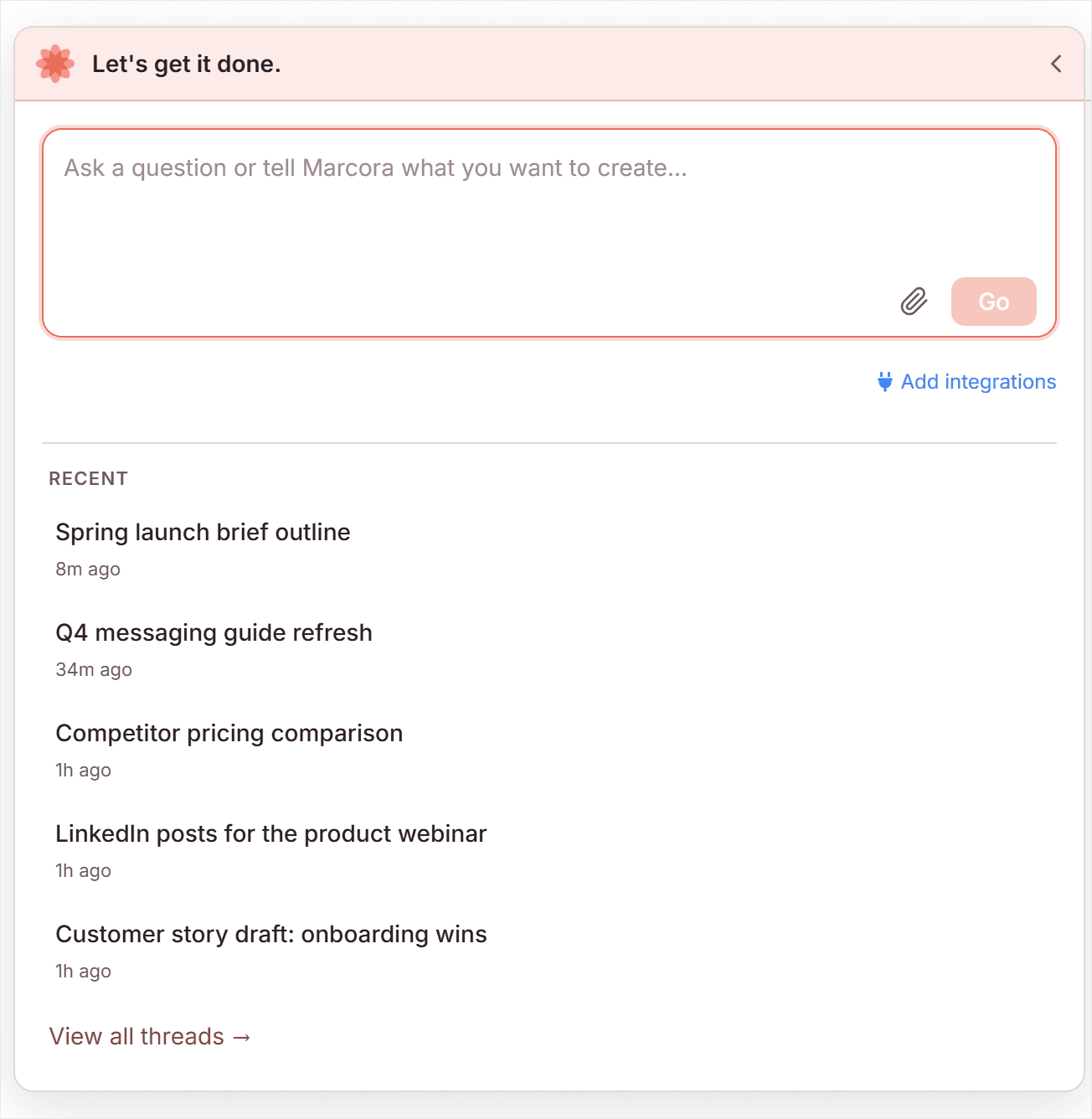
Marcora replies in the panel. To add more, type in the box below her reply and select the arrow button. Select Stop to end a task that's still running, or New Request to start a fresh conversation. Admins and Creators can select the expand icon (four corners, next to New Request) to open the thread on its own page.
Attach Files to a Message
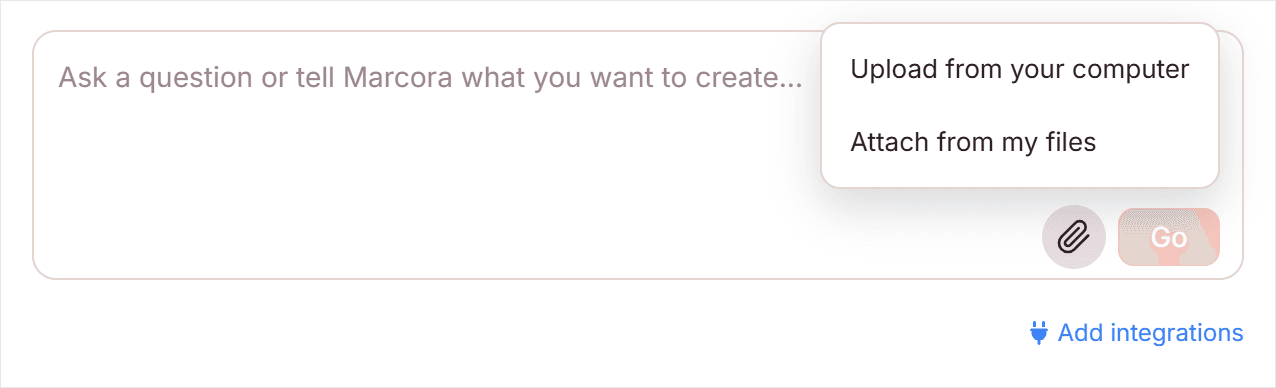
- Select the paperclip icon next to the send button.
- Select Upload from your computer, or Attach from my files to pick a file you uploaded before or one Marcora made.
- On each attached file, select Read the text or Give it the file.
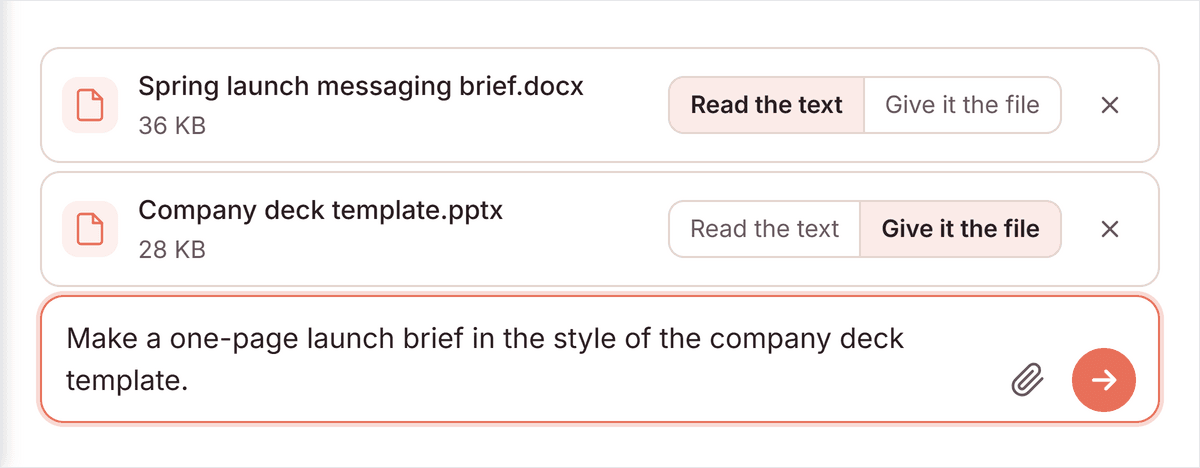
- Type your request in the box.
- Select Go in the Start here panel, or the arrow button on the Agent Threads page or in a thread.
You can also paste a file into the box or drag it onto the box. A message can carry up to 5 files of up to 25 MB each: PDF, Word (.docx), PowerPoint (.pptx, .potx), Excel (.xlsx), text (.txt, .md, .csv, .rtf) and images (.png, .jpg, .jpeg, .gif, .webp). Files you attach are also kept on the Files tab of Agent Threads. See Agent Files.
- Read the text gives Marcora the file's text. It's the default for PDF, Word and text files. Turning a file into text uses Studio Credits. If it takes too long, Marcora is given the file instead.
- Give it the file gives Marcora the original file, so she can work from its layout, for example a PowerPoint to use as a template. It's the default for PowerPoint, Excel and image files.
Find and Continue a Thread
- Select View threads →.
- Type in the search box above the list, or scroll the list.
- Select a thread to open it.
- Type in the box at the bottom of the thread.
- Select the arrow button.
The list shows when each thread started, its last activity and its Channel: Web app, or the chat app the conversation happened in. To rename a thread, select its title at the top of the thread, type a new name (80 characters at most) and press Enter. To start one from this page, select + New Thread, type your task and select the arrow button.
Manage What Marcora Remembers
- Open the account menu, top right.
- Select Memory Settings. The page is titled What Marcora remembers.
From there:
- Select the Memory switch to turn memory on or off.
- Select Edit to change a memory's text or Category, then Save memory.
- Select Delete, then Yes, delete memory, to remove one.
- Select Clear all, then Yes, clear all memories, to remove every memory.
You can also ask Marcora in a conversation to remember or forget something.
How It Works
- Marcora draws on your Brand Foundation, Reference Library and any Connected Apps you've added (Add integrations appears in the panel before you start a task). She can also search the web and read pages you link.
- Marcora can create documents, manage projects, context items and content plans, and make Word, PowerPoint, Excel and PDF files to download.
- Marcora can't delete anything on her own. When a task involves deleting, she asks you to confirm it in Review changes.
- You can attach files in the Marcora app, not in conversations in a chat app.
- Your team's brand files and templates (in Context Hub > Brand) are given to Marcora in every new thread you start in the app, so you can ask for a deck or document "in the style of" one by name without uploading it. A thread keeps the versions it started with.
- Threads are private to the person who started them. Workflow runs are listed in Workflows, not here.
- Memory saves useful details from your private conversations with Marcora, not from shared channels or workflow runs. Memories are yours alone, kept per team, and up to 300 characters each. Turning memory off stops Marcora using or saving them. Saved ones stay until you delete them.
Troubleshooting
Studio Credit Limit Reached. Your team has run out of Studio Credits. If you're an Admin, you can upgrade or buy more from the message. Otherwise it names who to contact.
The task is too long to send. A task can be up to 4,000 characters. Past 2,000, a counter under the box warns that Marcora may struggle with very long tasks. Past 4,000, the message turns red, asks you to trim the task, and Go stays off. You can keep editing: delete text in the box until it fits, then select Go.
"This conversation is too old to continue." You can still read the thread. Start a new one to keep working.
A memory edit won't save: "Use a fact or preference in your own words…" Memory doesn't accept instructions that change how Marcora works. Rewrite it as a fact or preference.
A file won't attach. The message says why: the file type isn't supported, the file is over 25 MB, the file is empty, or the message already has 5 files.
"Remove or retry the file that did not upload to send your message." A file didn't finish uploading. Select Try again on that file, or remove it with its X.
Related
- Context Hub: the Brand Foundation and Reference Library Marcora works from
- Content: where the documents Marcora creates are kept
- AI Assistant: the assistant inside a document
- Marcora MCP Server: use your Marcora context from Claude or ChatGPT