Share Links
A share link turns a document into a web page anyone can open, with no Marcora account. On paid plans, you can see when each link was opened, roughly where from, and whether the same viewer came back, so you know when to follow up.
Before You Start
- Create links from a document's share panel: open the document and select the share icon (three connected dots) on the right edge.
- See every link your team has shared under Content > External shares. The page is titled See Who Opens What You Share.
- The External shares tab is for Admins and Creators. It lists links to documents you can open.
- Admins and Creators can create as many links as they need, on every plan. Creating links uses no Studio Credits. Open tracking needs a paid plan, and Free shows "See who opened your link" with Compare plans instead. See Pricing.
Create a Share Link
- Open the document.
- Select the share icon (three connected dots) on the right edge. The Share document publicly panel opens.
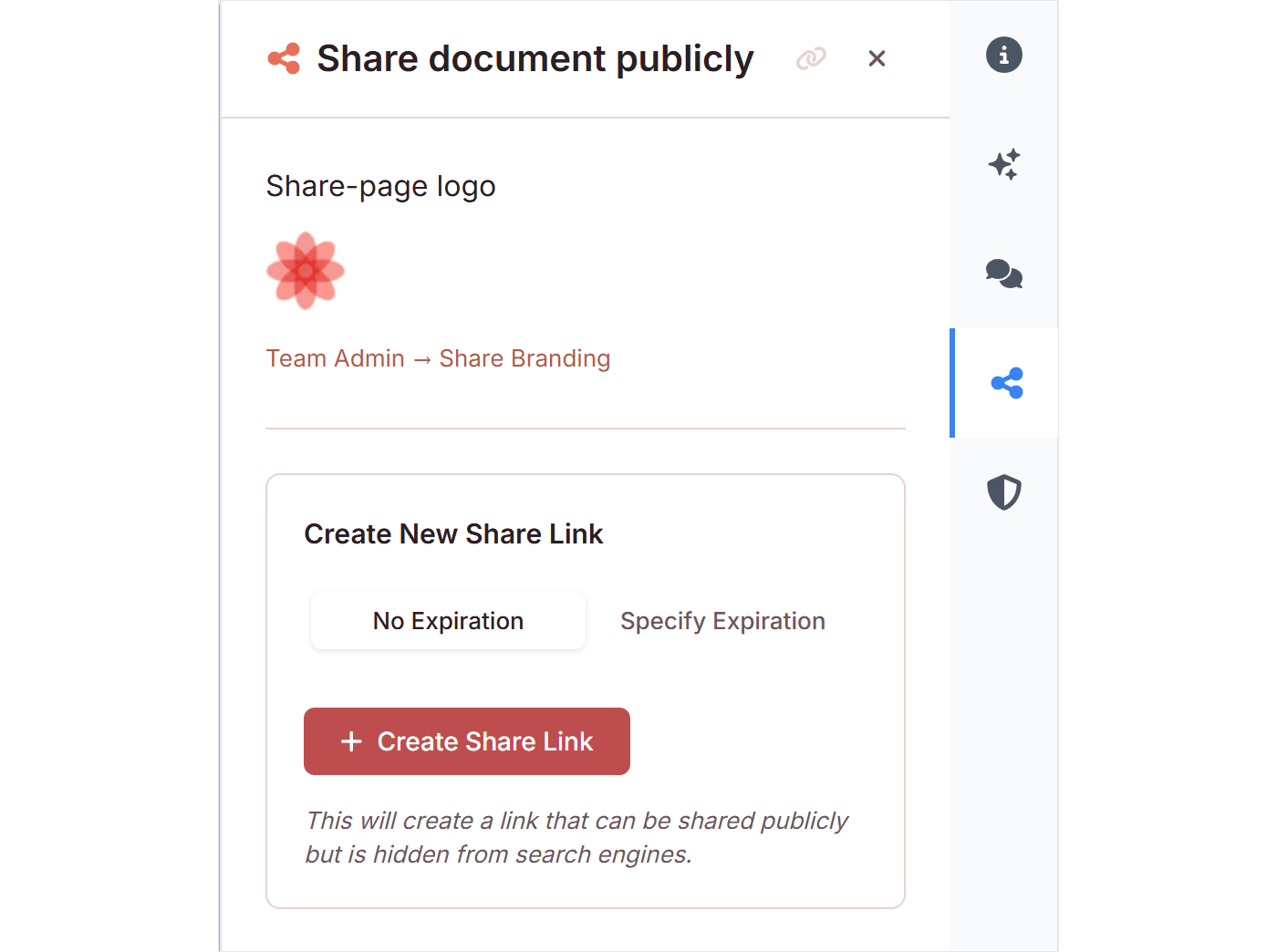
- Under Create New Share Link, choose No Expiration or Specify Expiration. For an expiry, pick the date.
- Select Create Share Link.
- Select Copy.
The link appears under Existing Share Links. Share pages are hidden from search engines.
Turn a Link Off
- Open the document's share panel.
- Under Existing Share Links, select Show more on the link.
- Select Deactivate.
The share page stops working. Select Activate to turn it back on. Admins can turn off any link, and Creators can turn off the links they made. An expired link can't be turned back on.
See Who Opened Your Links
- Open Content, then select the External shares tab.
- Filter with the All, Opened or Not opened yet cards, or type a document title in the search box. Each card shows how many links it holds.
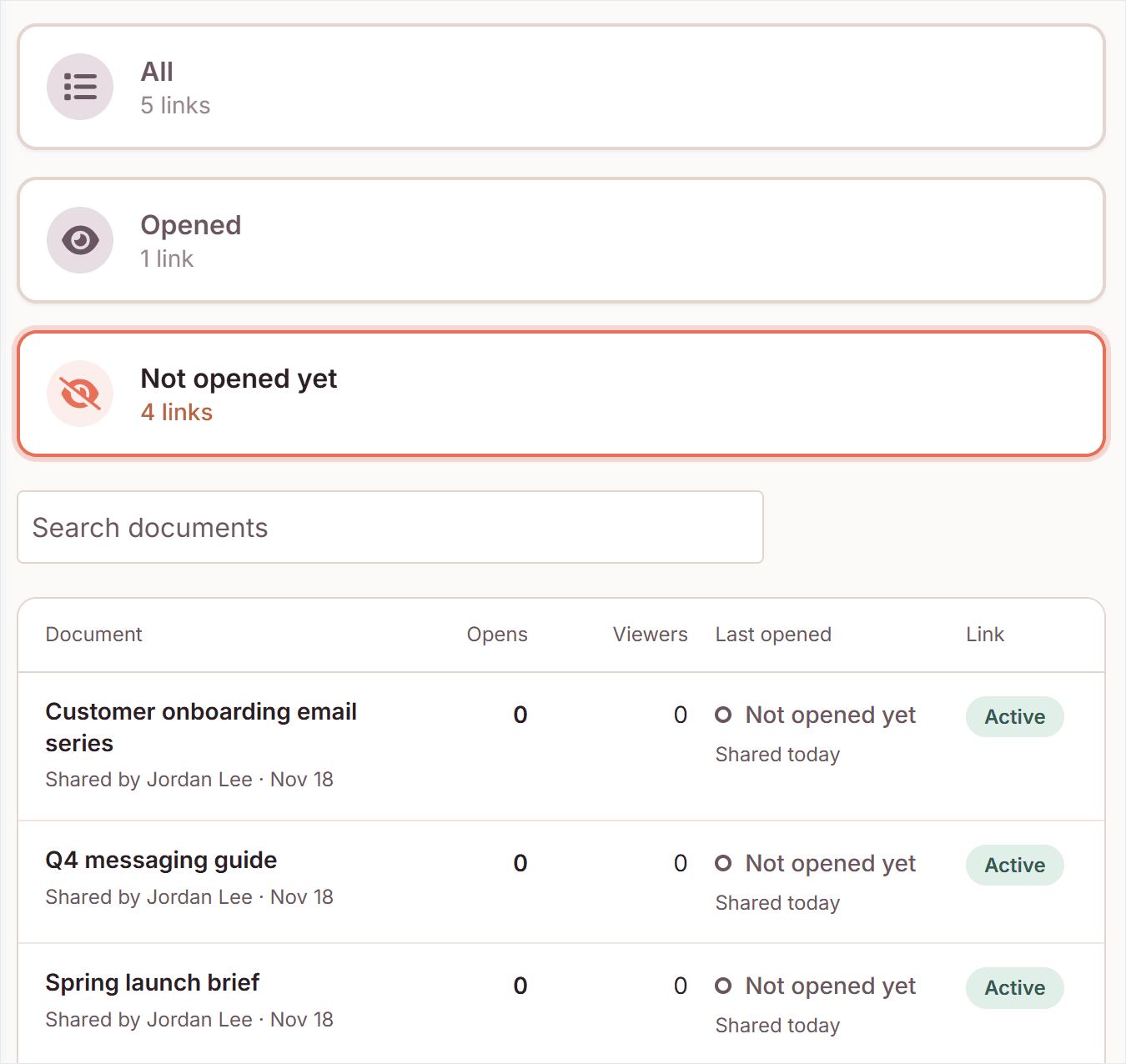
- Select View activity on a link.
The link's activity opens: its opens, viewers, first and last opened, a card for each viewer with an approximate place, network and device, and All opens. Select External shares to go back. You can also open a link's activity with View full activity in the document's share panel.
See Every Open
- On the External shares tab, select Opens.
- Optional: select Show likely automated to include opens that aren't counted.
The top of Opens shows Opens this week, Viewers this week and how many viewers came back more than once. Opens lists each open across your workspace, newest first, with When, Link, Viewer, Approximate place, Network and Device. Select Links to go back to the list. The tab remembers which view you used last.
Check a Link from Its Share Page
When you open your team's share link while signed in to Marcora, a bar at the top says your own opens aren't counted. The bar appears even if you have another workspace open. Only Admins and Creators on the link's team who can open the document see it. Collaborators don't.
- Select Edit to open the document. If the link is in another workspace, the button offers to switch to that workspace and edit.
- Select View activity to see the link's opens. Select See every open in Content › External shares for the full activity.
How It Works
- An open is counted when someone outside your team opens an active link. Opens by you and your teammates while signed in, link previews and bots aren't counted.
- Opens that look automated, such as an email security scan, are marked Likely automated and Not counted. They never send the first-open notification or email. A link's activity groups them on one Likely automated card, which names the network the latest one came from when Marcora knows it.
- A viewer is one browser, so the same person on a phone and a laptop shows as 2 viewers. Viewer numbers belong to each link. Returning viewer means that viewer opened the link more than once.
- Places are approximate, from the viewer's internet connection. Marcora doesn't record who the viewer is.
- Opens from before open details were recorded count toward the totals, without place, network or device.
- Opens are recorded on every plan, so upgrading from Free shows each link's history.
- If the document is deleted, its share pages stop working and its links' open history is deleted too.
- On a paid plan, the person who created a link gets a notification the first time it's opened, and an email if their notification settings allow it.
Troubleshooting
A link shows "Not opened yet" but you opened it. Your own opens aren't counted while you're signed in. Open it in a private window, or ask someone outside your team.
"Link not available" This link isn't in your workspace, or you can't see its document.
The External shares tab only shows "See who opened your link". Open tracking needs a paid plan. See Pricing.
Related
- Content: create and manage the documents you share
- Team Management: set the logo and Marcora branding on share pages
- The
create_external_shareandget_share_link_activityMCP tools do the same jobs from Claude or ChatGPT.