What's New
What's New shows what changed in Marcora since you last looked: new features, improvements and fixes. Some updates link to the feature so you can try it. It appears in the app after an update, and every update stays listed on the What's new page.
Before You Start
- Find it under What's new at the bottom of the left sidebar. On a phone, open the menu first.
- Everyone on the team can see it, whatever their role.
Catch Up After an Update
When Marcora is updated while you have it open, a card appears at the top right.
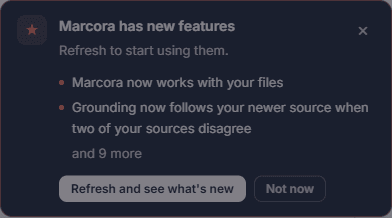
- If the card says Marcora has new features, select Refresh and see what's new. The page reloads and the What's new panel opens.
- Read the updates. Select a link on an update to try it or read more.
- Select Got it to close the panel, or See all updates to open the What's new page.
To finish what you're doing first, select Not now. The panel opens the next time you move to another page.
If the update has only fixes, the card says Marcora was updated. Refresh to get the latest. Select Refresh to load the new version.
See All Updates
- Select What's new in the sidebar.
- Optional: select New, Improved or Fixed to show one kind of update.
Updates are grouped by month, newest first. Anything you hadn't seen is listed first, then the line Seen before your last visit.
The same updates are public at marcora.ai/changelog, for anyone outside your team. The page links to it under Also on marcora.ai.
How It Works
- Each update is tagged New, Improved or Fixed, with its date. Some have a link to try the feature in the app, a link to its docs page, or a link to read more on marcora.ai.
- A dot next to What's new in the sidebar means there are updates you haven't seen. While the panel is open, a number shows how many.
- Updates count as seen when you select Got it or See all updates, close the panel, follow a link to try a feature, or open the What's new page.
- The panel opens on its own only when there's something new or improved, and only once each time the app loads. Fixes alone don't open it, but they're listed on the page.
- The first time you use What's New, it shows updates released since you joined Marcora.
- You can't open the panel by hand. Use the What's new page instead.
Troubleshooting
The page says "No updates published yet." No updates have been published. Check back after the next one.
"Could not load updates right now." Select Try again.
The card doesn't go away. Select Refresh or Refresh and see what's new to load the new version of Marcora.
Related
- Getting Started: find your way around the app